/PathFinding
概要

列車はMinecraftのワールドの中で、Switcherサインの自動分岐を用いていろいろな場所に向かうルートを設定できます。看板を設置することで線路ネットワークのトポロジーが設定され、列車はそれを利用して目的地へと走っていきます。
列車の向かう地点は目的地(Destinations)と呼ばれ、Destinationサインを用いることで作成や設定が可能です。また線路の分岐や終点は線路網のノード(Nodes)で、Switcherサインによって指定できます。ほかにも、Blockerサインを用いることで線路の進行を一方通行に制限でき、線路の交通の流れに逆らったルートが利用されるのを防げます。
やりかた
目的地を設定する
まずは、Destinationサインを用いて目的地となる地点を設定しましょう。サインの三行目にはその目的地の名前を、四行目にはここを通った列車が次にどこの目的地へ向かうかを指定できます。なお、指定は任意で、空行にもできます。
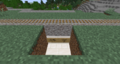
Destinationサインのある駅。列車はここに来た後、三十秒間停止してから、また右へと向かっていきます。

分岐のノードを設定する
レールを分岐させたいところには、常時オンになっているSwitcherサインが必要です。目的地が設定された列車がその上を通るとき、経路が自動で計算され、適切な方向へ分岐します。
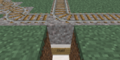
Switcherサインが自動的に行き来の三方向を切り替えます。

一方通行にする
もし線路の一方向からだけ列車の通行を許可したいときには、常時オンのBlockerサインを使います。たとえば、方向の逆の線路――つまり対向車線――が二本並んでいるときなどはこの機能を活用できます。経路探索システムは、Blockerサインでブロックされている線路を自動的に無視するようになっています。
![[+train:left]で左から来る列車がブロックされ、右から左へと通っていく列車だけ許可します。同様に、[+train:right]で逆のこともできます。](/thumb.php?f=Pathfinding_Blocker.png&width=120)
[+train:left]で左から来る列車がブロックされ、右から左へと通っていく列車だけ許可します。同様に、[+train:right]で逆のこともできます。
![[+train:left]で左から来る列車がブロックされ、右から左へと通っていく列車だけ許可します。同様に、[+train:right]で逆のこともできます。](/p/File:Pathfinding_Blocker.png)
試してみる
列車を線路の上に配置し、目的地設定のコマンドで列車の目的地を設定します。
/train destination [name]
/train destination output
そしてSwitcherサインへとトロッコを走らせると、目的地へ向かうために自動で線路が切り替えられます。目的地を変更してからもう一度Switcherサインの上を走らせてみてください。また、BlockerサインやDestinationサインなどの複数のサインを設置してからいろいろと試してみてください。
もしSwitcherサインが誤動作をしているようであれば、経路の再計算のコマンドを行うことで強制的に探索を再試行させることができます。
/train reroute
また、Propertyサインを使うことで目的地を設定することも可能です。

上級者ステップ
基本的なシステムを理解したら、次はもうちょっと複雑で高度な機能について見ていきましょう。
便利な関連機能
チャンクロード
列車がプレイヤーの遠くにいってしまってアンロードされてしまうのを防ぐために、keepchunksloadedプロパティからチャンクローダーの機能を設定できます。
こちらのPropertyサインから設定ができます。
また列車に対して、/train keeploaded trueコマンドを入力してから/train save [name]で保存し、Spawnerサインで自動的にチャンクローダーの列車をスポーンさせることもできます。
待機距離
waitdistanceプロパティを利用すると、衝突を避けるために列車間に広い距離を保てます。
閉塞領域
閉塞領域を利用すれば、交差点での激突を回避できます。
駅へ
Stationサインは列車を次の目的地の方向へ発車できます。
デバッグ

デバッグ棒を利用して、経路探索においての情報を確認することができます。棒でレールをクリックすると、利用されうるルートについての情報が表示されます。スニークしつつクリックするとリルートされ、クリックした地点から到達できる線路が再計算されます。もし小さな線路網が複数ある場合は、こちらのほうがグローバルのリルートコマンドを使うよりも効率的です。
すべての目的地
次のコマンドを用いれば、指定の線路から到達できるすべての目的地を表示できます。
/train debug destination
クリックされた箇所から線路網のノードを探索し、そこから到達可能なすべての目的地をリストアップします。それぞれの目的地には総距離も同時にリストアップされ、その方向へ向かう道をパーティクルで示します。リストアップされるはずの目的地が表示されない場合はどこかで線路が途切れているので、線路に沿って進みながらちょこちょこクリックすることでどこに問題があるのかを調べることができます。
単一の目的地

Use the following command to debug a specific destination:
/train debug destination [destination]
Now when you click on the track, particles are displayed what route is taken to reach the destination. This is useful when debugging a specific destination so no particles are displayed for routes and destinations that aren't relevant to you.
Route Manager
Normally only one destination is set at a time. It is possible to set the next destination to go to on the destination sign itself, but that means you can only have one possible route. With the route manager a list of destinations to visit can be configured, and then applied to trains. Trains will then go down this list, advancing it every time they pass by a destination on it.
Commands
First, edit a train, then use the following commands to set a list of destinations:
/train route set [destination1] ([destination2] [destination3...])
/train route set outpost hillfort dungeon

To add additional destinations to the existing route, or to remove them, use these commands:
/train route add [destination1] ([destination2] [destination3...])
/train route remove [destination1] ([destination2] [destination3...])
You can then use the destination command or property to start the route at a desired destination. Otherwise, the route is started from the beginning the moment the train hits a destination sign. To inspect the route of a train, use the base route command. The current destination the train has is highlighted green.
/train route

Persistence
The route of a train can be saved globally under a name so it can later be applied to other trains instantly.
/train route save [name]
To load a saved route, this command can be used:
/train route load [name]
Alternatively, it can be done using a property sign as well: